

What you’ll build
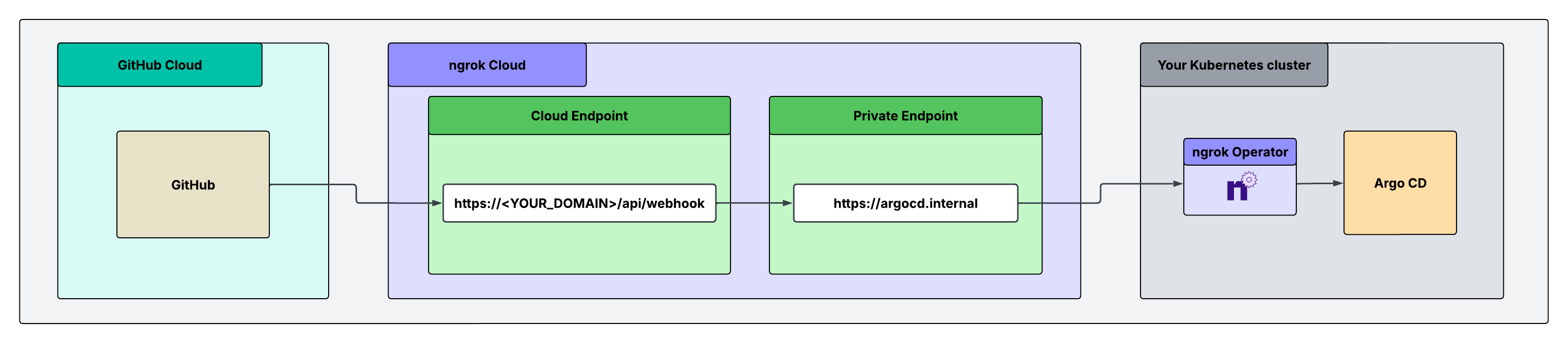
- A
CloudEndpointis the public URL you give to GitHub. Its Traffic Policy accepts only the/api/webhookpath, verifies the GitHub signature, and rejects everything else. - An
AgentEndpointwith the internal URLhttps://argocd.internalpoints to theargocd-serverService. Only the Cloud Endpoint can send traffic to it.
What you’ll need
- An ngrok account and an API key.
- The ngrok CLI installed on your workstation.
- The ngrok Kubernetes Operator installed in the cluster. The cluster needs outbound access on port 443.
- Argo CD installed in the cluster.
This guide uses the default
argocdnamespace andargocd-serverService. - Admin access to the GitHub repository or organization that sends the webhooks.
kubectlaccess to theargocdnamespace.
1. Serve Argo CD over HTTP inside the cluster
By default,argocd-server redirects plain HTTP requests to HTTPS.
GitHub doesn’t follow redirects, so the webhook fails.
The ngrok Operator already encrypts traffic between the ngrok edge and the cluster, so you can let argocd-server accept plain HTTP inside the cluster:
This setting also affects any other ingress that sends traffic to
argocd-server.
If another ingress expects HTTPS on port 443, check it before you make this change.2. Give Argo CD a private address
Create anAgentEndpoint that points to the argocd-server Service:
argocd-agentendpoint.yaml
kubectl -n argocd get svc to find it.
3. Store the signing secret in a vault
ACloudEndpoint lives in Git, so don’t put the webhook secret in its policy.
Store the secret in Secrets for Traffic Policy instead.
Add your API key to the ngrok CLI:
openssl rand -hex 32.
Then create a vault and a secret:
<VAULT_ID> with the ID that the first command returns.
4. Create the CloudEndpoint and policy
argocd-cloudendpoint.yaml
- The first rule returns a
404for every path except/api/webhook, so even a correctly signed request can only reach the webhook path. - The
verify-webhookaction checks the GitHub signature. A request with a bad or missing signature gets a403. - The
forward-internalaction sends verified requests toargocd.internal. The path stays the same, so Argo CD receives the request at/api/webhook.
5. Configure the GitHub webhook
In your GitHub repository, go to Settings → Webhooks → Add webhook. For an organization-wide webhook, go to the organization’s Settings → Webhooks instead. Set these fields:
Click Add webhook.
GitHub sends a
ping event right away.
6. Test it
-
In GitHub, open the webhook, click the Recent Deliveries tab, and find the
pingevent. Click Redeliver. -
In the ngrok dashboard, open the Traffic Inspector.
The request to
/api/webhookshows a200response from Argo CD. -
Push a commit to a repository that an Argo CD Application tracks.
Then check the
argocd-serverlogs for the event:The Application refreshes within seconds. If it has auto-sync turned on, it also syncs. -
Confirm that ngrok rejects a forged request:
You get a
403 Forbidden, and Argo CD doesn’t see the request. -
Confirm that other paths are blocked:
curl -i https://<YOUR_NGROK_DOMAIN>/returns a404.