

Region pinning
Region & IP resolution lets you restrict (or “pin”) which ngrok regions will handle traffic for a domain. Configure your domain to resolve to the IP addresses of one (or several) of ngrok’s globally distributed physical points of presence (PoPs). This feature is designed for customers with data residency and compliance requirements who need to ensure traffic is processed only within specific geographic boundaries.The same configuration will soon support dedicated IP addresses [preview feature], in addition to Points of Presence.
How it works
- Choose which ngrok points of presence your domain can use.
- All requests to endpoints on that domain will only be routed through your chosen PoPs.
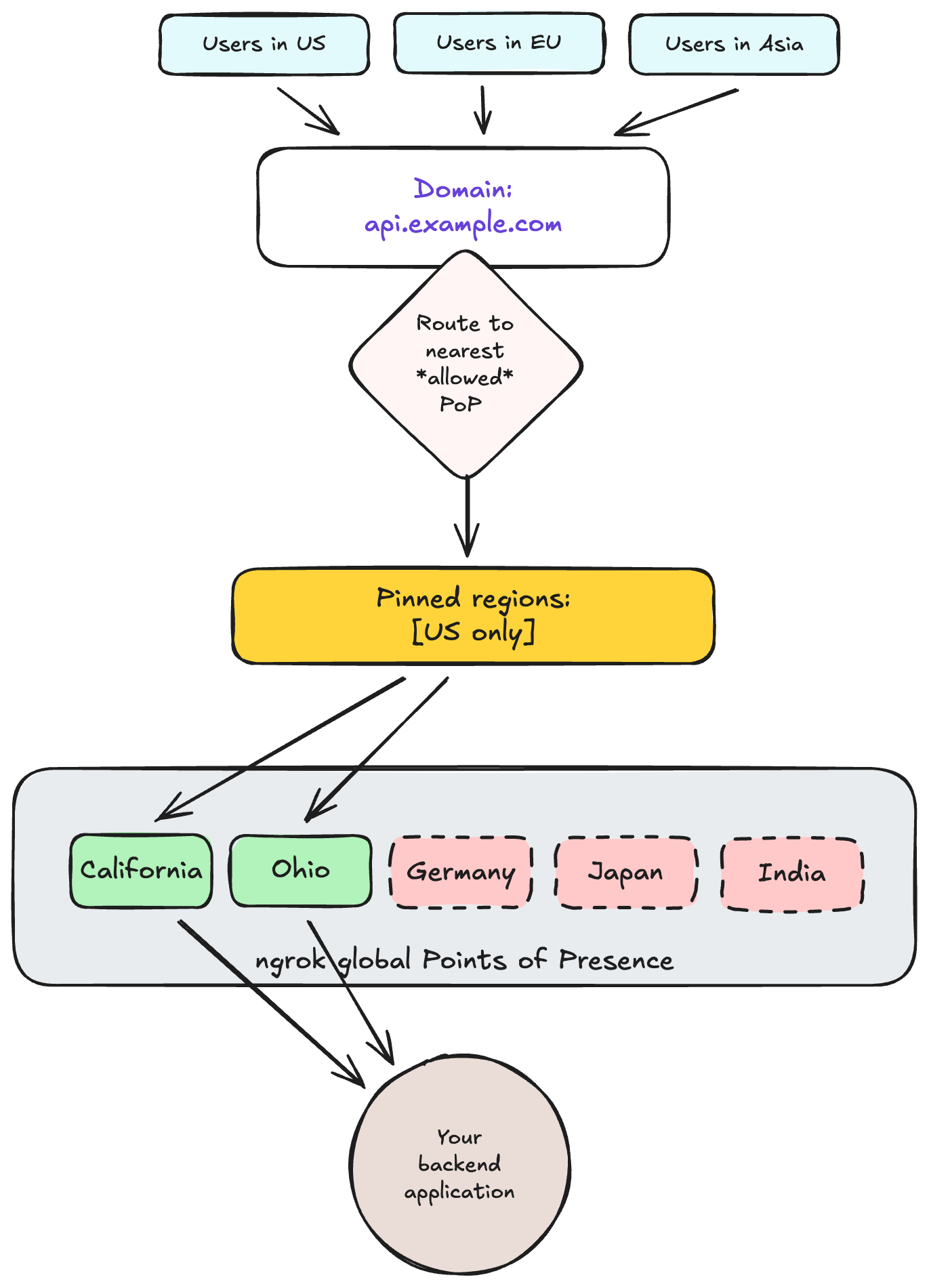
Configuring region resolution
To configure (or “pin”) which regions will resolve your traffic: update your domain resource with your preferred set of target regions. You can do this through the API or the dashboard, both of which are described below.Using the API
Theresolves_to property tells your domain how to resolve requests.
You can specify a list of ngrok physical PoPs (like “Frankfurt” or “California”), dedicated IPs, or both.
The following sections describe how to create and update a pinned domain.
To remove pinning, see Unpin a domain.
Create a pinned domain
You can create a new domain and customize region “pinning” (Region Resolution) in a single step. Use thePOST /reserved_domains endpoint and include the optional resolves_to property.
Update an existing domain
You can add Region Resolution settings to an existing domain. You can also modify the existing list, for example, by adding a third point of presence (example below). No DNS changes are required. UsePATCH to update the list of pinned regions.
API error handling
If a request contains invalid syntax or an invalid region code, the API request fails. The request returns HTTP 400 Bad Request with a structured error body, as shown in the example below:Using the dashboard
You can also make these changes through the ngrok dashboard. To configure your Region Resolution targets:- View your existing domains in the dashboard, or create a new one.
- Click the domain you wish to modify.
- Under Region & IP resolution, open the Resolves to menu and select the PoPs, region aliases, or both that the domain can use.
- Click Save.
Unpin a domain
Unpinning a domain removes its Region Resolution settings and restores the default behavior: global load balancing across all ngrok points of presence. You don’t need to change any DNS records, and the domain keeps its CNAME target.Using the dashboard
- View your domains in the dashboard and click the pinned domain.
- Under Region & IP resolution, open the Resolves to menu and select global. Selecting global removes the individual PoPs from the list.
- Click Save.
Using the API
UsePATCH to update the domain, and set the resolves_to property to an empty list.
resolves_to to [{ "value": "global" }] has the same effect.
If the list includes global alongside other PoPs, global takes precedence and the domain is unpinned.
If you leave resolves_to out of an update request, the domain’s pinning doesn’t change.
Using the ngrok CLI
Pass an empty list to the--resolves-to flag of ngrok api reserved-domains update:
Dedicated IPs (preview)
Dedicated IPs let you configure a domain to receive traffic on static IP addresses that are exclusively dedicated to your account (instead of ngrok’s shared multi-tenant IPs). When a domain uses dedicated IPs, you can create matching endpoints on any inbound port. Today, you are restricted to ports 80 and 443.How to use dedicated IPs
Dedicated IPs and Regional Resolution (“region pinning”) share the sameresolves_to field on the domain.
See the Dedicated IPs documentation for configuration examples, use cases, and pricing:
- Region pinning:
resolves_to: [{ "value": "<region-shortcode>" }] - Dedicated IPs:
resolves_to: [{ "value": "<ip-address>" }]
Frequently asked questions
Does this affect TCP endpoints?
Slightly different answer for each sub-feature:- Region pinning: no, since this feature applies only to matching HTTP/HTTPS endpoints. TCP uses reserved addresses, which already include a region.
- Dedicated IPs: yes, dedicated IPs are available for any ngrok-supported protocol, including HTTP/S, TCP, and TLS.
What happens if the resolves_to field isn’t added when creating a domain?
Nothing. That is, it uses the standard domain behavior: global load balancing, which automatically routes traffic to the best point of presence for that end-user.
This is the baseline behavior for domains, and is used by the vast majority of customers.
How do I remove region pinning from a domain?
Set the domain’sresolves_to list to empty, or select global in the dashboard.
See Unpin a domain for the steps.
Is it necessary to specify every region manually?
No, ngrok provides regional aliases as a shortcut to select all PoPs in a given geographic area. Aliases are in Preview (see list below). Initial regions will includeeuropean-union and united-states, depending on customer feedback (click Let us know).
Points of presence reference
Theresolves_to parameter uses the following PoP names: